
To create a new document for a particular case, select the Contacts tab:
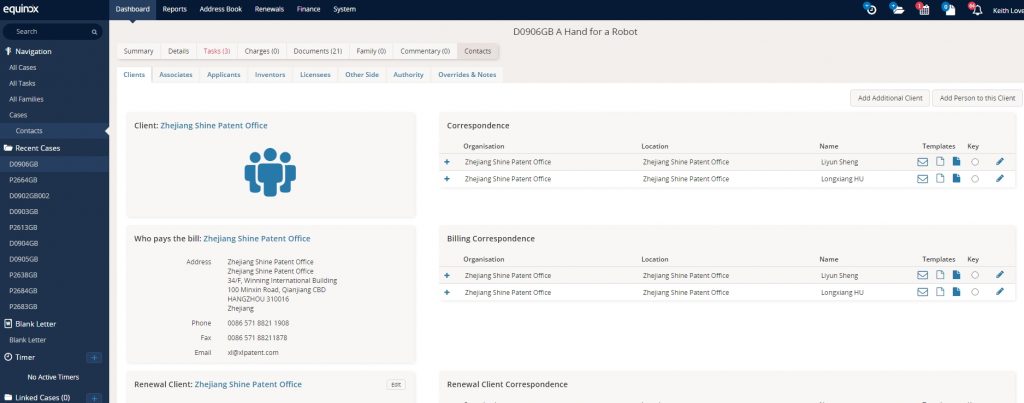
Creating a new document in Equinox sets up a new task.
Under the Correspondence section, choose the person you are communicating with (for documents that are not specifically directed to a person, it won’t matter who you pick), and click on the right hand symbol under “Templates” to create a document based on an existing template. This takes you to:
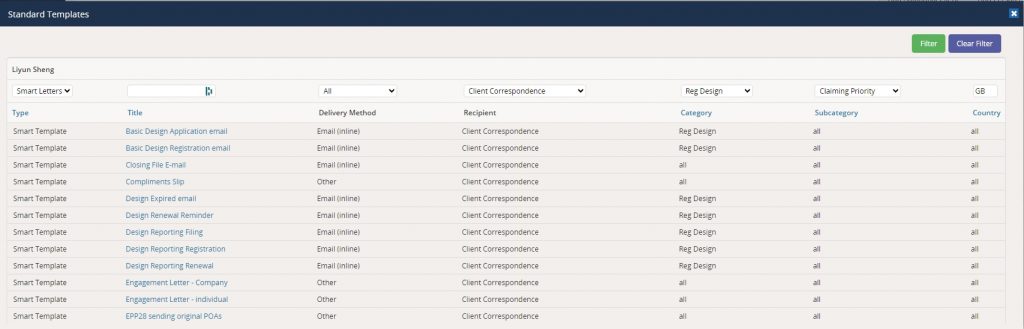
You can then choose the template for the document you want to create. If you can’t find the one you want, try changing the specific column headings to “All”.
WORD documents
If the document you are creating is a Word document you will be taken to the following task:
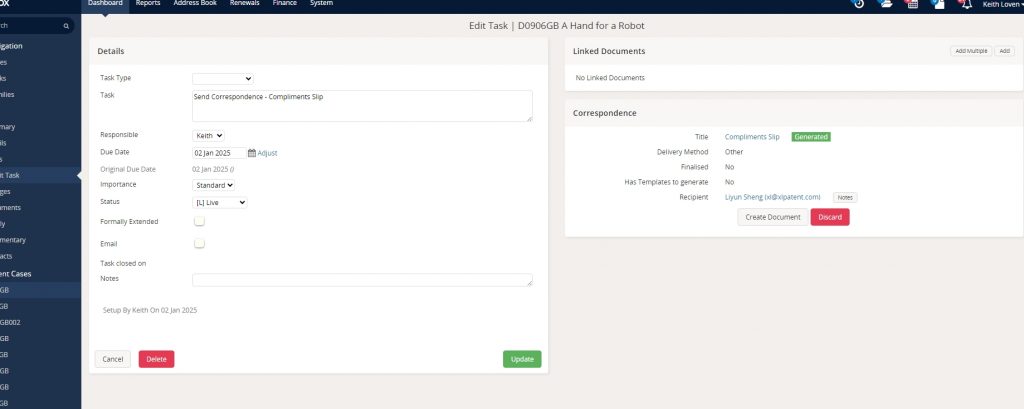
Click on Create Document on the RH side and then choose to open the document. After you have edited the document to your satisfaction, click on the Save icon at the top left of the screen (the floppy disc icon). This should then take you to a “Matter Details” popup. Click Next to take you to the Document Details popup. Enter as the Title something useful to enable you to identify the document later. Under Classification, select the Folder (usually Correspondence, but other folders might apply). The Status will depend on what is going to happen to the document. if it is going to be sent as an attachment to an e-mail, you could select Finalised and tick the “Convert to PDF” box so that the document is saved as a pdf – this is to be preferred to sending it as a Word document, although sometimes that might be necessary, as it fixes the form of it.
E-mails
When creating an e-mail from a template, you will be taken to the task page again:
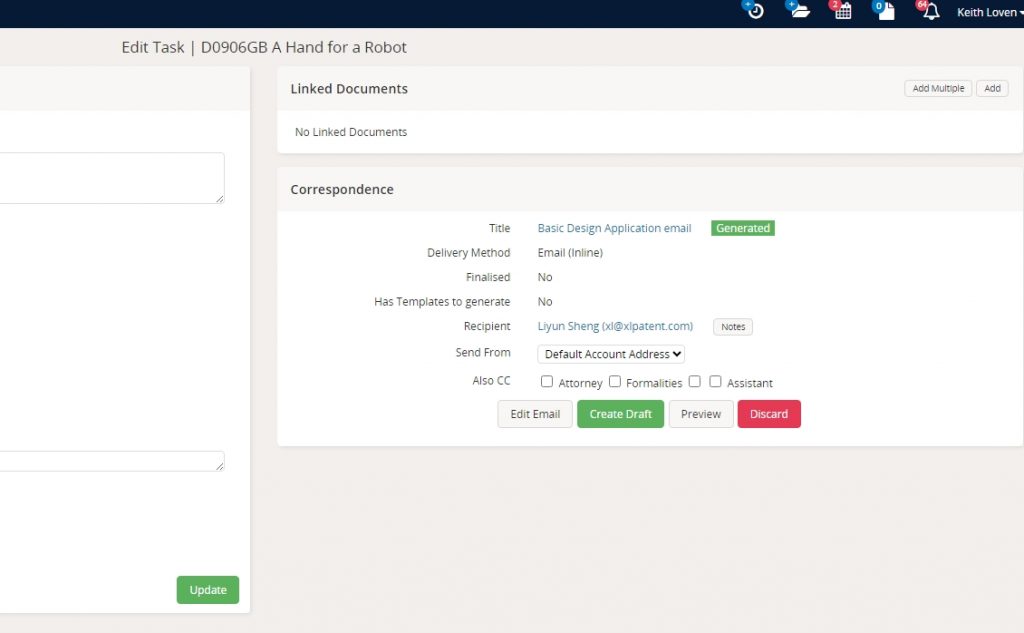
You will see that there are various options. Linked Documents enables you to attach one (“Add”) or several (“Add Multiple”) case documents to the e-mail. The documents to be attached must be sendable, i.e. the status must not be “draft”, but you can go back into the documents list and make the changes before the final stage of creating the e-mail.
If you want to copy in another member of the team for the particular case, you can do so by ticking the relevant box(es) in “Also CC” row. when you are ready, click “Create Draft”. This will create a draft e-mail in the Drafts section of Outlook. You can open and edit it in the usual way. When you send it, the “Matter Details” form will popup and you can then save it in the manner described above for Word documents.
Case References in e-mails
Equinox identifies our case reference in an e-mail and so automatically fills in the “Matter Details” popup form if the reference (“Matter Code”) is included in the e-mail header between two vertical lines, for example |B0004|. If you are saving an e-mail that does not include this, you will have the opportunity to enter it in the “Matter Details” popup form under Matter Code.
Whichever form of document you are creating, the last step is to complete the Task entry. For a Word document, you will see:
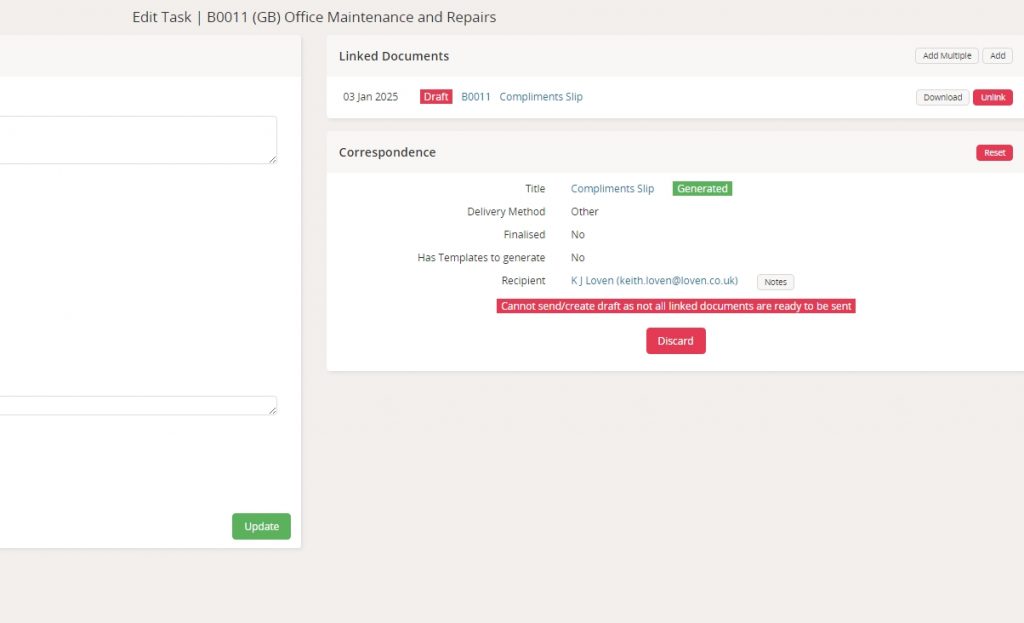
You will generally just click on Discard. You will then need to go back into the Task:
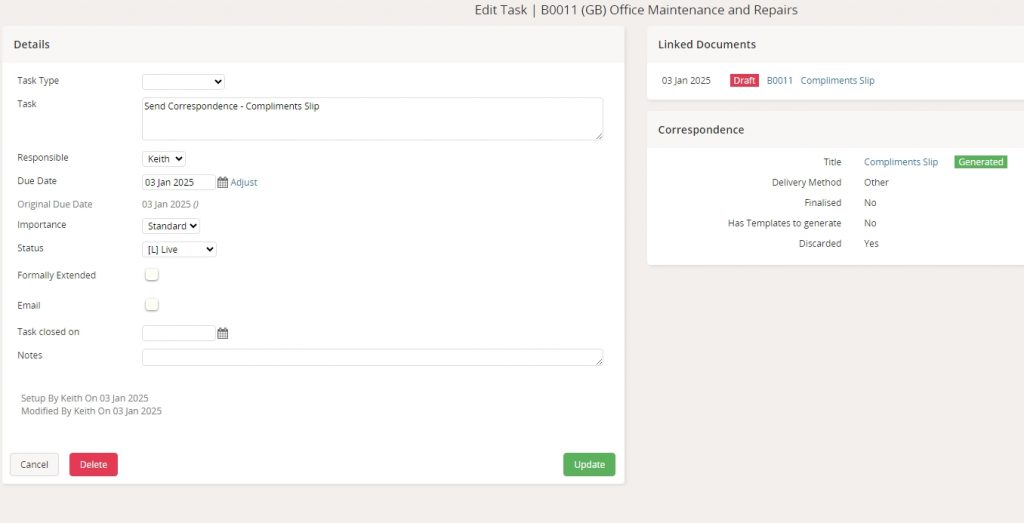
Change the Status to Done, and then click Update.
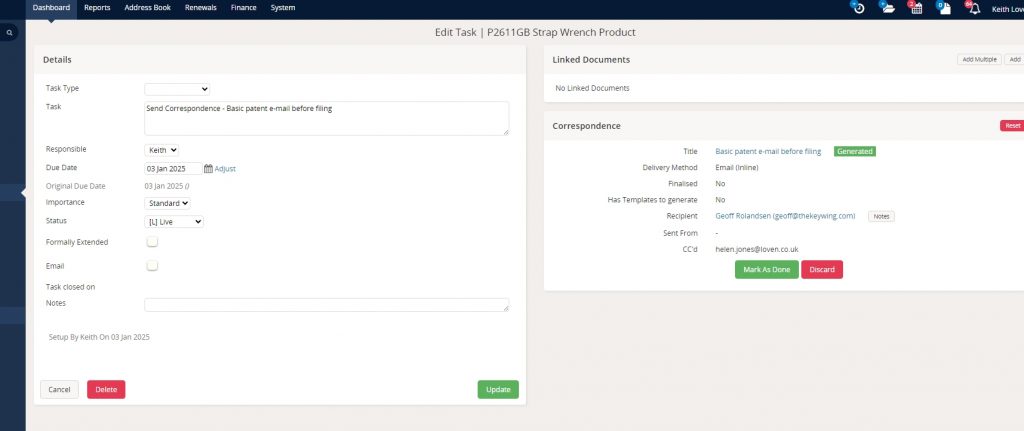
For an e-mail, clicking on the Mark As Done button will automatically change the status to Done, so you will then just need to click on Update.
Last Updated on 3 January 2025 by Keith